Introduction
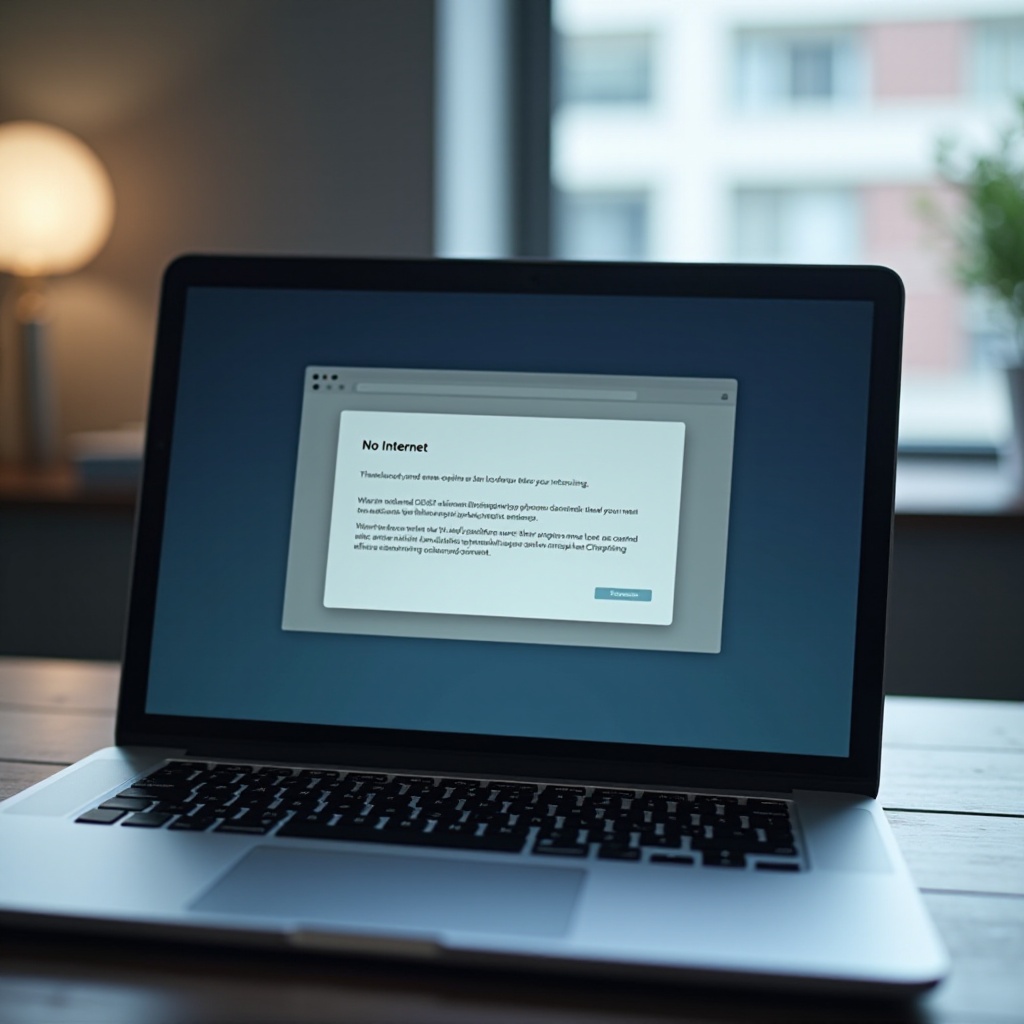
Facing internet issues with your Chromebook can disrupt your workflow and leisure activities. The ‘connected but no internet’ problem, while common, can be tackled efficiently with the right steps. This guide provides practical solutions to get your Chromebook back online swiftly.
Understanding the ‘Connected but No Internet’ Issue
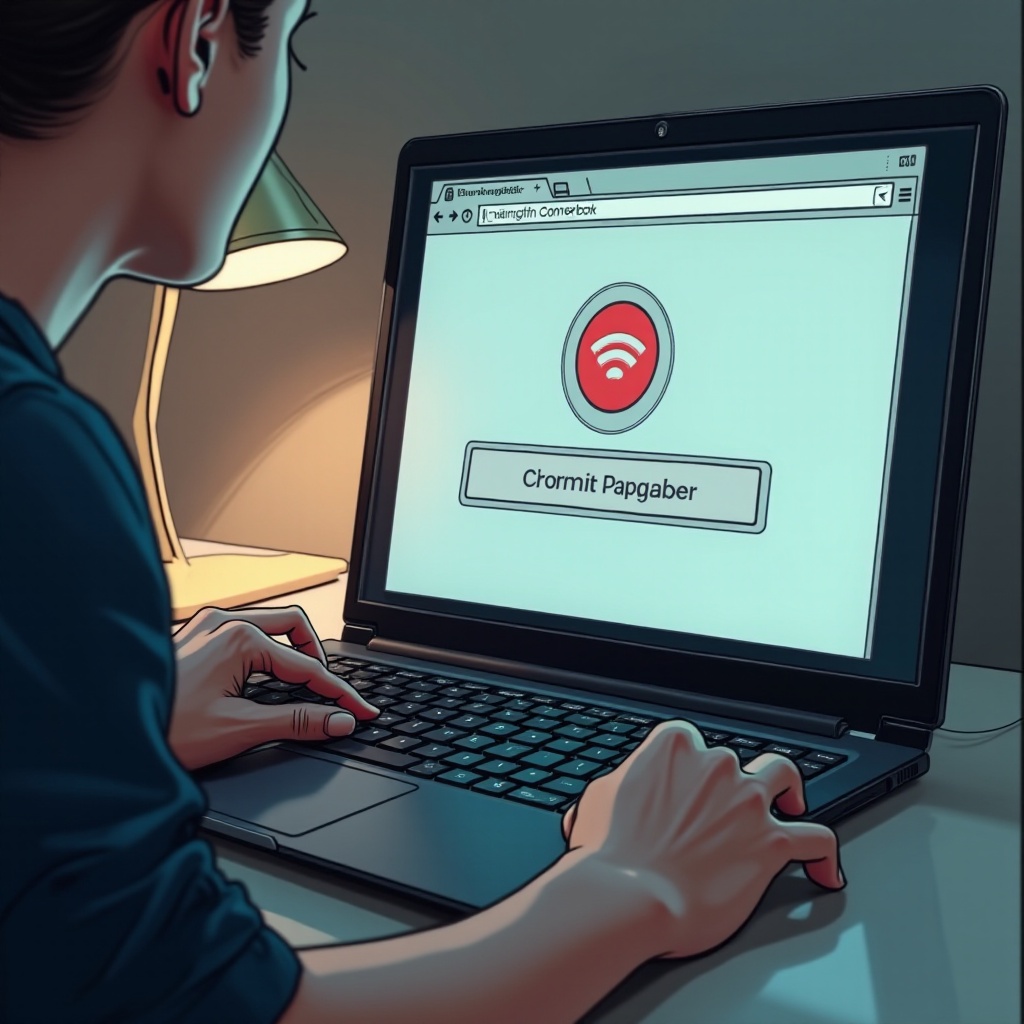
The occurrence of this issue often stems from various factors such as software errors, network problems, or external interferences. By identifying these factors, you’re better equipped to remedy them. The following section delves into these common causes to aid your understanding.
Common Causes of Internet Connectivity Problems
Router and Network Issues
Your network relies heavily on router functionality, which can falter due to poor configuration or equipment failure. Ensuring your router’s firmware is up-to-date can prevent such disruptions.
Chromebook Software Glitches
Software glitches on your Chromebook can create barriers to a steady internet connection. It’s essential to keep your system updated to counter any bugs or outdated settings that may hinder performance.
Environmental Interference
The physical environment can heavily affect signal quality, with walls and electronic devices sometimes weakening connections. Recognizing such interferences helps maintain optimal internet strength.
With an understanding of possible causes, let’s explore basic troubleshooting methods to quickly fix these issues.
Basic Troubleshooting Steps
Tackling connection issues with simple solutions first can be effective and time-saving.
1. Restart Your Chromebook and Router: Often, a simple restart can resolve connectivity problems. First, disconnect and power off your Chromebook, then switch off your router for a minute before restarting both.
2. Verify Wi-Fi Settings: Double-check that your Chromebook is connected to the correct Wi-Fi network, as occasional reconnects might lead it to other available routers.
3. Use Network Diagnostics Tool: Leverage Chrome OS’s built-in diagnostics tool to identify and troubleshoot any network-related anomalies.
If basic troubleshooting steps don’t yield results, advanced interventions may be necessary.
Advanced Solutions for Resolving Connectivity Issues
For persistent issues, a deeper investigation into your Chromebook’s and network’s settings is required.
1. Adjust Network Proxy and DNS Settings: Improper settings can cause connectivity problems. Verify and correct proxy and DNS configurations from the Chrome OS network settings menu.
2. Update Chromebook Operating System: Operating system updates contain fixes for known issues, potentially addressing connectivity glitches. Ensure that your OS is the latest version.
3. Check for Router Firmware Updates: Access your router’s admin page via a web browser to confirm if it has the latest firmware. This action can resolve miscommunication between the network and your device.
Proactive measures can prevent these issues from recurring, helping maintain a stable connection.
Preventive Measures to Avoid Future Problems
Keeping both your devices and network components up-to-date is crucial.
– Regular System and Network Maintenance: Consistently updating both your Chromebook and router can preemptively tackle software-related glitches.
– Utilize Offline Features: Enable offline settings across applications you frequently use, ensuring you can continue working even amidst internet interruptions.
By being proactive, you can achieve a more consistent and reliable browsing experience.
Conclusion
With clear strategies outlined, resolving the frustrating ‘connected but no internet’ issue is within your grasp. From basic troubleshooting to advanced techniques and preventive measures, these approaches can enhance your Chromebook’s operational experience.
Frequently Asked Questions
Why is my Chromebook not connecting to the internet even though it says it’s connected?
This issue can arise from software errors, network misconfigurations, or physical interferences. Applying the troubleshooting steps in this guide can resolve these issues.
How can I use my Chromebook offline when there’s no internet connection?
Google’s G Suite apps and various other applications support offline use. Enable offline settings in these apps to work without needing an immediate internet connection.
What should I do if the troubleshooting steps don’t work?
If the issue persists after following the guide, consider reaching out to Chromebook support or your internet service provider to explore possible hardware problems or complex network issues.