Introduction
Encountering a non-functional backlit keyboard on your MacBook Air can be inconvenient, especially when working in low-light environments. This comprehensive guide is designed to help you diagnose and fix the backlit keyboard issue efficiently. You’ll gain insights into the potential causes and step-by-step solutions to restore your keyboard’s functionality and improve your overall MacBook experience.
Understanding Backlit Keyboard Functionality on MacBook Air
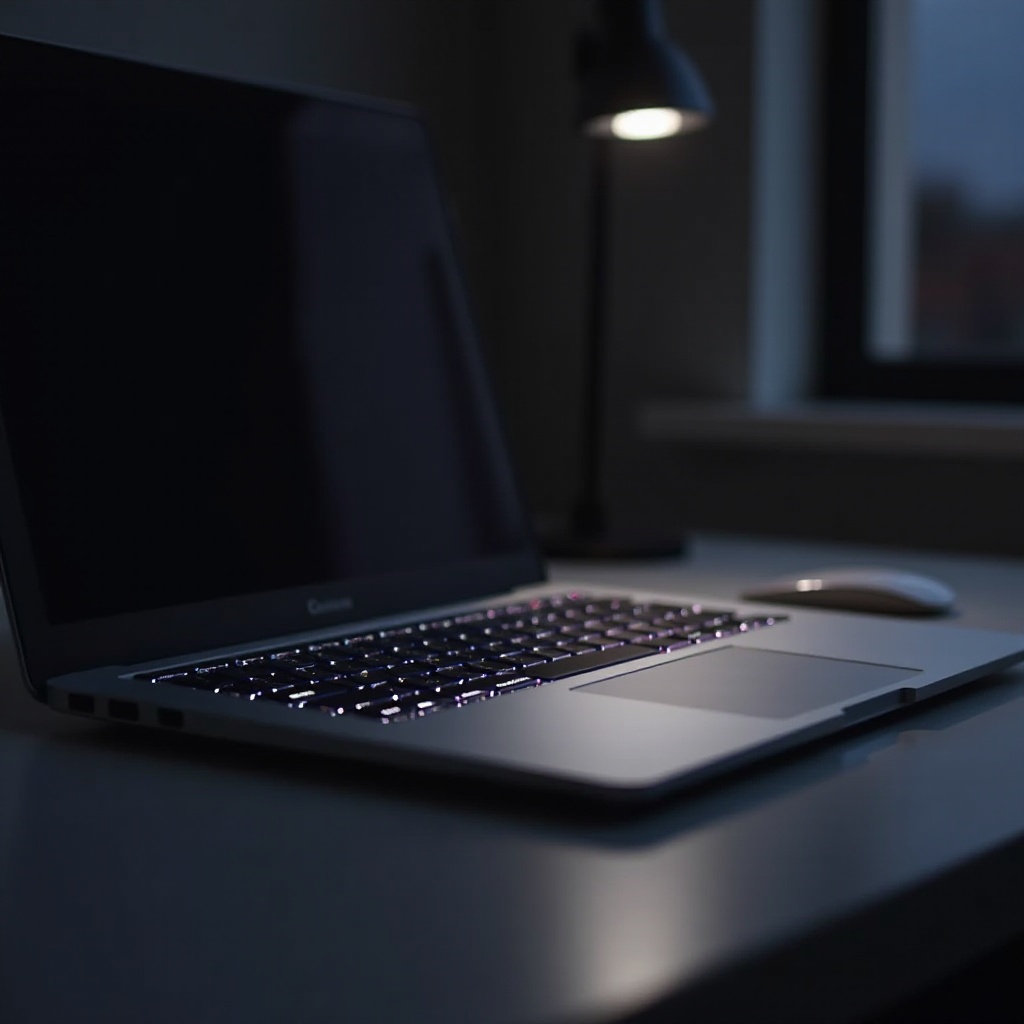
The backlit keyboard of a MacBook Air is designed to enhance your usability in dimly lit settings. This feature relies on an ambient light sensor that automatically adjusts the brightness of your keyboard based on the surrounding light conditions. When there’s sufficient ambient light, the sensor may dim or turn off the backlight to conserve power. Understanding how this system functions is vital in diagnosing and fixing related issues effectively.
By familiarizing yourself with how the ambient light sensor and backlighting system operate, you will be better prepared to tackle any problems that may arise and optimize your troubleshooting efforts.
Common Causes of Backlit Keyboard Malfunctions
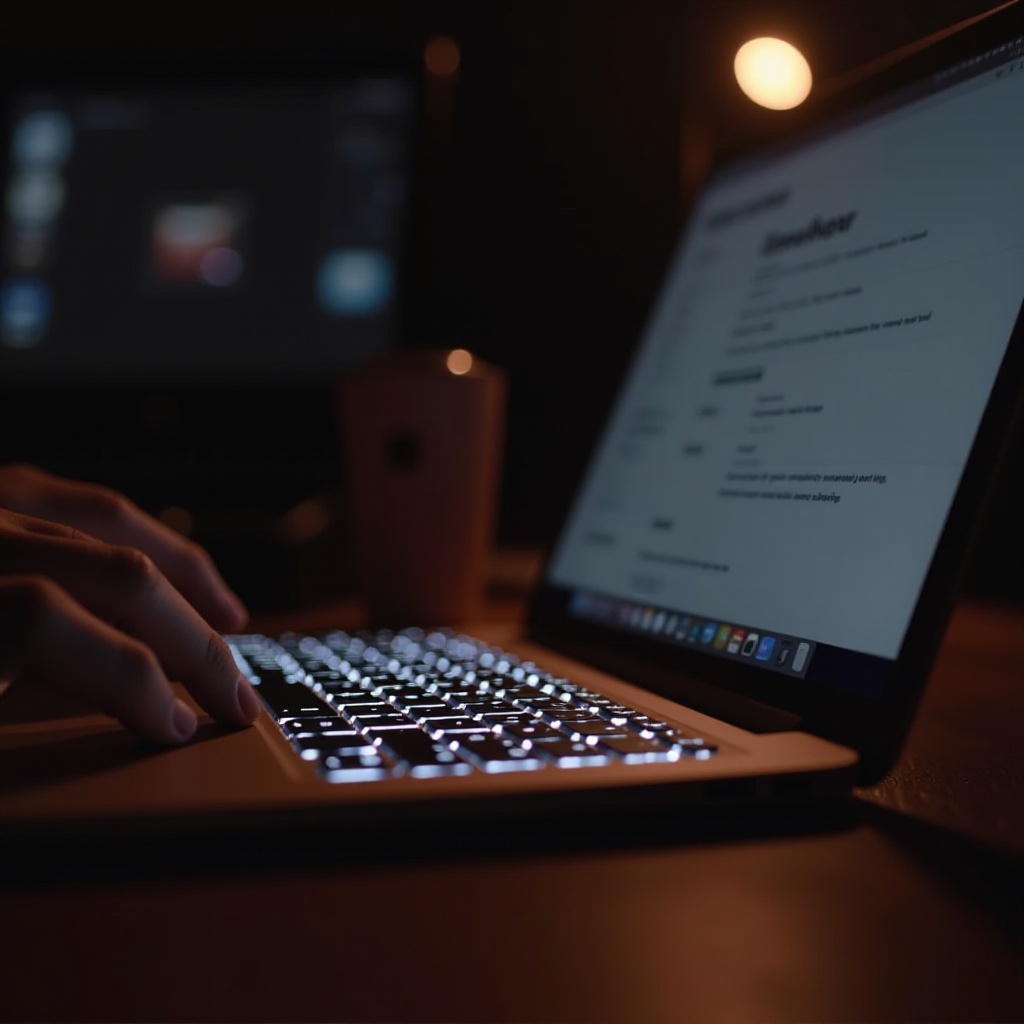
An effective troubleshooting process starts with identifying the root cause of the problem. Several common factors can lead to a non-functional backlit keyboard on a MacBook Air:
- Ambient Light Sensor Issues: The ambient light sensor may fail to adjust the keyboard’s brightness correctly if it becomes obstructed or malfunctions.
- Software Glitches and macOS Updates: Bugs in the operating system or outdated software can interfere with the backlight’s functionality.
- Hardware Connection Issues: Physical problems such as loose or damaged components can disrupt the backlight’s operation.
Knowing these potential issues allows for more targeted troubleshooting and quicker resolution of the problem.
Quick Diagnostic Steps to Identify the Problem
To effectively diagnose the issue with your MacBook Air’s backlit keyboard, consider the following steps:
- Check for Software Updates: Ensure your macOS is updated to the latest version. Software updates often contain fixes for bugs that could affect the backlit keyboard.
- Assess Keyboard Preferences and Shortcuts: Go to System Preferences > Keyboard to verify that the backlight settings are not disabled.
- Evaluate External Device Interference: Disconnect any external devices to rule out potential conflicts causing the keyboard issue.
Performing these diagnostics helps narrow down the root cause and better informs the subsequent steps for resolving the malfunction.
Step-by-Step Solutions to Fix the Backlit Keyboard
With diagnostic insights, proceed with these step-by-step solutions to restore your backlit keyboard’s functionality:
- Manually Adjust Keyboard Brightness: Use the F5 and F6 keys on your keyboard to manually increase or decrease the backlight and see if it responds.
- Reset SMC and NVRAM/PRAM:
- Shut down your MacBook Air.
- For SMC reset, press and hold Shift + Control + Option keys and the power button for 10 seconds.
- To reset NVRAM/PRAM, restart your MacBook and hold the Option + Command + P + R keys for about 20 seconds.
- Execute Terminal Commands: Open Terminal and enter ‘sudo nvram boot-args=kab=0’ to modify relevant settings and observe any effects on the backlight functionality.
- Enter Safe Mode for Diagnostics: Restart your Mac while holding the Shift key to enter Safe Mode, where system diagnostics can help identify underlying issues.
Each of these solutions tackles different potential problem areas, from software conflicts to hardware settings, ensuring a comprehensive approach to resolving the backlight issue.
Advanced Troubleshooting Techniques for Persistent Issues
If the basic solutions fail, consider these advanced troubleshooting methods:
- Reinstall macOS Without Data Loss: Backup your data, then reinstall macOS to eliminate software bugs that could be influencing the keyboard backlight.
- Run Apple Diagnostics for Hardware Issues: Restart your MacBook and press the D key to access Apple Diagnostics, which can reveal hardware faults affecting performance.
Advanced troubleshooting methods target deeper system and hardware issues, offering potential fixes when basic steps prove insufficient.
When to Seek Professional Help
If you have attempted both basic and advanced troubleshooting without success, you may need professional assistance:
- Signs of Hardware Malfunction: Persistent problems despite various troubleshooting efforts often point to serious hardware failures.
- Apple Support and Repair Services: Consider reaching out to Apple Support or visiting an authorized service provider for expert repairs and diagnostics.
Professional assistance ensures that significant underlying issues are addressed effectively, allowing you to return to full keyboard functionality.

Conclusion
Fixing a non-functional backlit keyboard on a MacBook Air involves understanding the system’s complexities and methodically applying solutions. With this guide, you have detailed steps to troubleshoot and resolve both software and hardware-related issues. Remember that professional help is always available if personal attempts do not achieve the desired results. Keeping your system updated and well-maintained can prevent future issues, ensuring a seamless user experience.
Frequently Asked Questions
Why won’t my MacBook Air’s keyboard light up?
There could be multiple reasons, such as ambient light sensor issues, outdated software, or hardware failures affecting the backlight.
How do I reset the SMC on my MacBook Air?
Shut down your MacBook Air, then press and hold the Shift + Control + Option keys and the power button for 10 seconds, then release.
Does updating macOS help fix the backlit keyboard issue?
Yes, updating macOS to the latest version can resolve the issue by addressing any software bugs affecting the keyboard backlight.