Introduction
Having your Toshiba laptop’s touchpad stop working can be inconvenient, but don’t worry. There are several steps you can follow to troubleshoot and fix this issue. This guide will provide you with effective techniques to restore the functionality of your touchpad.
Common Causes of Touchpad Issues on Toshiba Laptops
Understanding what causes your touchpad to malfunction can help you address the issue more efficiently. The main culprits often include:
- Driver Malfunctions: Outdated or corrupt drivers can lead to touchpad failures.
- Software Interruptions: Conflicting applications may interfere with touchpad operations.
- Hardware Issues: Physical damage or debris might affect touchpad sensitivity.
Grasping these potential causes will better prepare you as you move through troubleshooting steps.
Basic Troubleshooting Steps
Start with straightforward checks and basic adjustments before delving into more sophisticated solutions.
- Checking Touchpad Enable/Disable Function Keys:
-
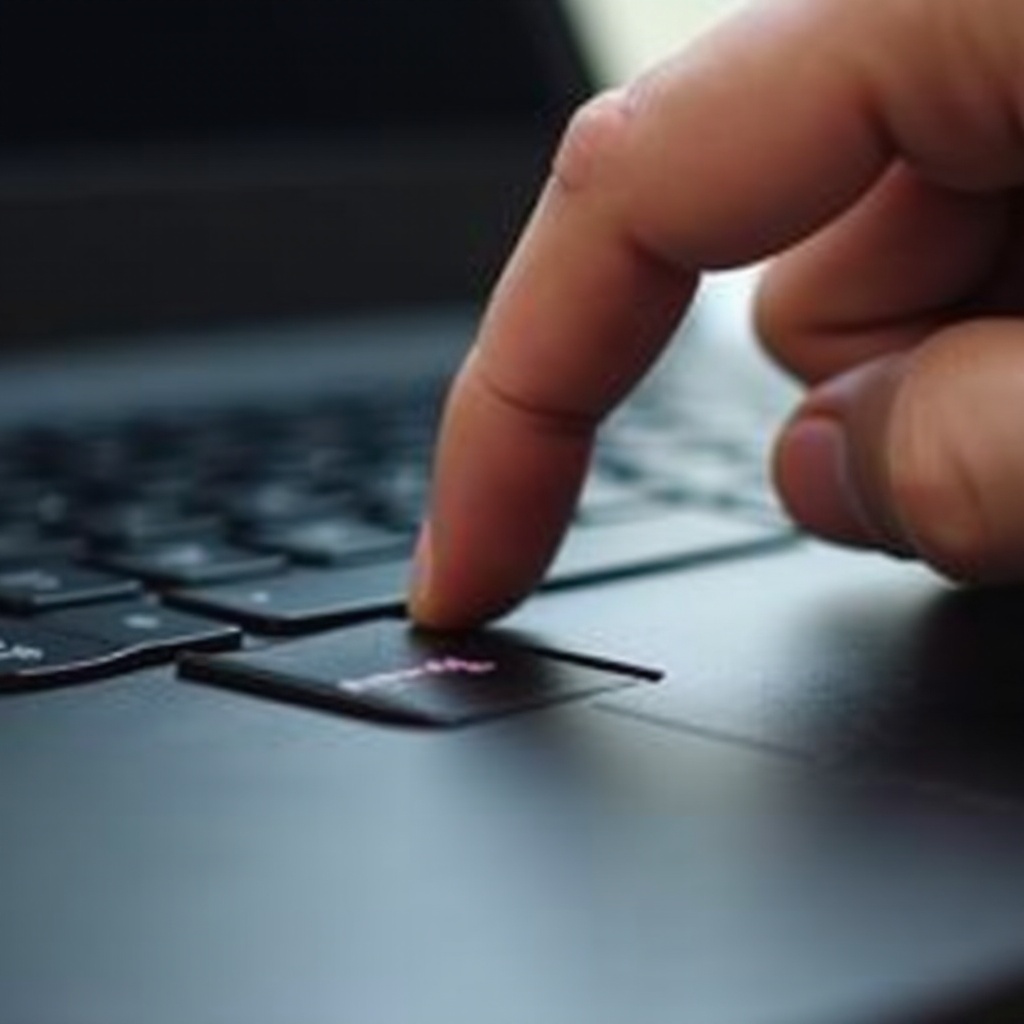
Toshiba laptops commonly use function keys, like F5 or F9, to toggle the touchpad. Ensure this is not inadvertently disabled.
-
Verifying Touchpad Settings in Windows 10/11:
- Go to ‘Settings’, then ‘Devices’, and finally ‘Touchpad’ to ensure the touchpad is enabled and configured properly.
If the touchpad still isn’t responsive after these steps, consider checking for driver-related issues.
Updating and Reinstalling Touchpad Drivers
Drivers play a fundamental role in hardware functionality. Updating or reinstalling them can resolve many touchpad issues.
- How to Update Touchpad Drivers via Toshiba’s Website:
-
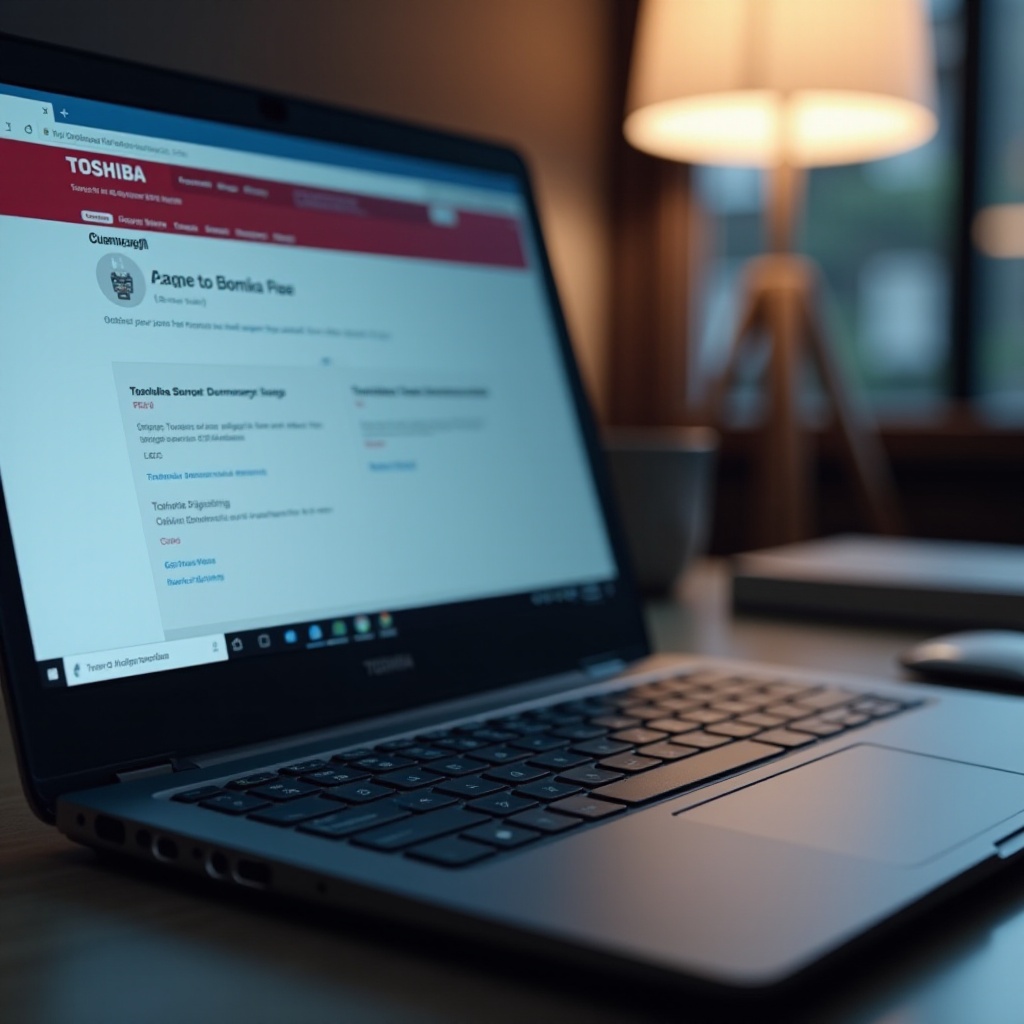
Navigate to Toshiba’s official support page, input your laptop model, and download the latest driver.
-
Using Windows Update for Driver Compatibility:
- Open ‘Settings’, proceed to ‘Update & Security’, and then ‘Windows Update’ to check for the latest drivers that can optimize compatibility.
Keeping drivers updated can resolve most problems caused by software inconsistencies.
Advanced Troubleshooting Techniques
If basic solutions don’t work, advanced troubleshooting might be necessary to fix persistent issues.
- Booting into Safe Mode to Identify Software Conflicts:
-
Safe Mode runs your computer with essential drivers, helping identify non-Microsoft software interfering with the touchpad.
-
Performing a System Restore to Revert Recent Changes:
- System Restore can undo changes like recent updates that triggered touchpad dysfunction. It’s useful if problems began after a specific change.
These advanced steps can help isolate issues that are not apparent during normal operation.
Addressing Hardware Concerns
When software solutions fail, it’s essential to consider hardware-related causes.
- Inspecting for Physical Damage:
-
Check the touchpad for scratches or signs of wear that might disrupt functionality.
-
Cleaning and Maintaining the Touchpad Surface:
- Use a microfiber cloth and suitable cleaner to remove grime and dirt, which can impair touchpad responsiveness.
If no software fixes work, physical repair or further cleaning might be your answer.
When to Seek Professional Assistance
Persistent issues may require professional diagnosis, especially if your laptop is under warranty. An expert can identify and fix problems you might not see.
Conclusion
Restoring your Toshiba laptop’s touchpad involves targeted troubleshooting. Start with basic checks and move through detailed solutions, considering hardware issues and professional help if necessary.
Frequently Asked Questions
How do I enable my touchpad if it’s disabled automatically?
Use the function keys, often F5 or F9, to toggle touchpad functionality. Check your laptop’s manual for specifics.
Can software conflicts affect my touchpad functionality?
Yes, software conflicts can interfere with the touchpad. Booting in Safe Mode can help identify these conflicts.
What should I do if my touchpad still doesn’t work after updates?
Consider checking for hardware issues or consult a professional, as persistent failures might require repair.