Introduction
Encountering audio issues on your Chromebook can be quite frustrating, disrupting not only your entertainment but also vital communications and work. These sound issues may stem from simple misconfigurations or deep-rooted hardware problems. This guide is here to help you quickly pinpoint and remedy these issues. From minor adjustments to advanced troubleshooting, we have strategies to get your sound back.
Understanding Chromebook Audio Settings
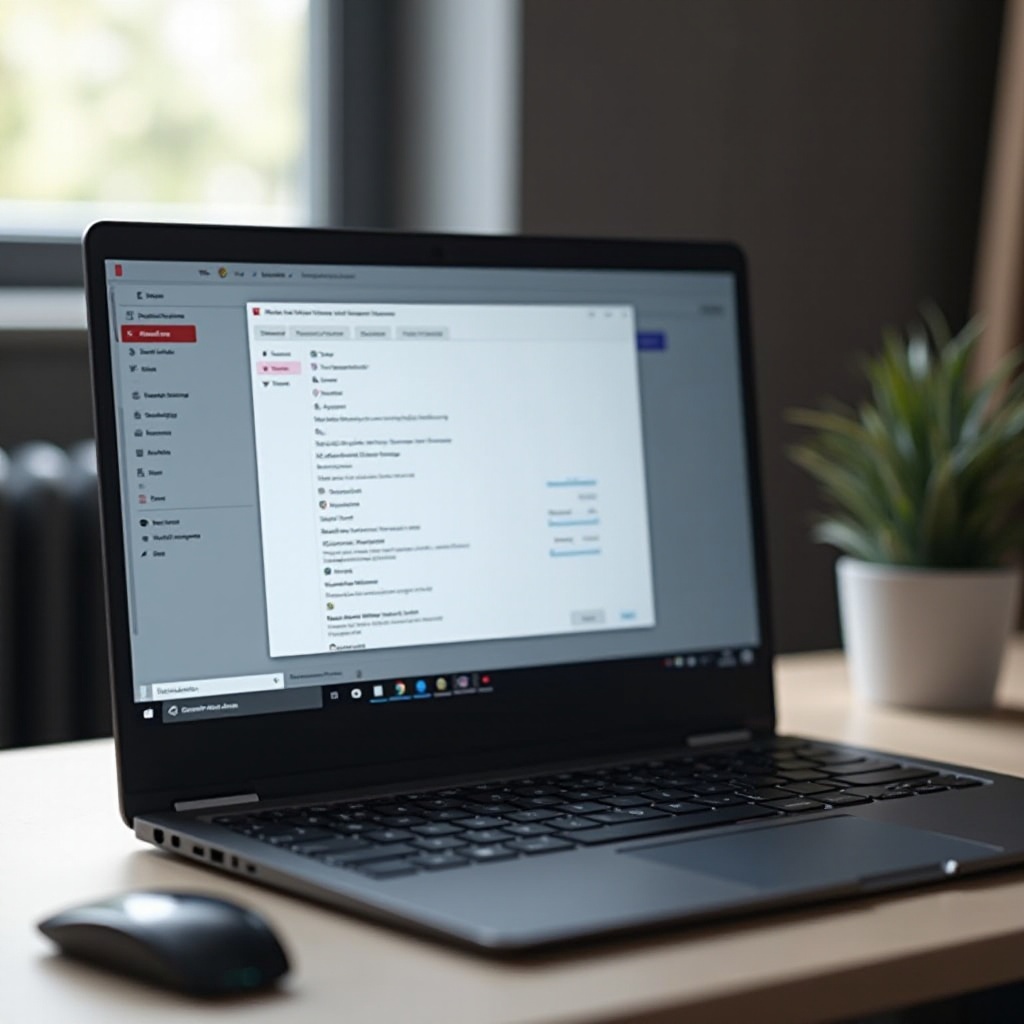
It’s crucial to grasp how Chromebook’s audio settings operate before diving into solutions. Familiarizing yourself with these settings lays the groundwork for effective troubleshooting.
- Access the Sound Menu: Look for the status area located at the bottom-right corner of your screen, where your account picture resides. Click on it, then select the sound icon to manage volume settings and attached audio devices.
- Configure Audio Inputs and Outputs: Ensure the correct devices are set for audio input and output. Within the sound menu, click on the arrow beside the volume slider to pick the suitable device, such as built-in speakers, headphones, or external outputs.
With these settings in mind, you can begin addressing your sound issues. If these configurations seem correct and the problem persists, proceed to basic troubleshooting methods.
Basic Troubleshooting Steps
If your Chromebook’s audio issues remain unsolved, begin with these straightforward steps.
- Check Volume and Mute Settings: Verify your Chromebook is not muted and that the volume is adequately raised. Do this both in the system tray and within any media-related apps.
- Restart Your Chromebook: Sometimes a simple reboot can resolve unnoticed sound anomalies and refresh system processes.
- Ensure Correct Device Selection: Re-examine the sound menu settings to ensure the proper audio output device is chosen.
These initial steps often remedy minor software issues. Should the audio problems persist, move on to advanced troubleshooting techniques.
Advanced Troubleshooting Techniques
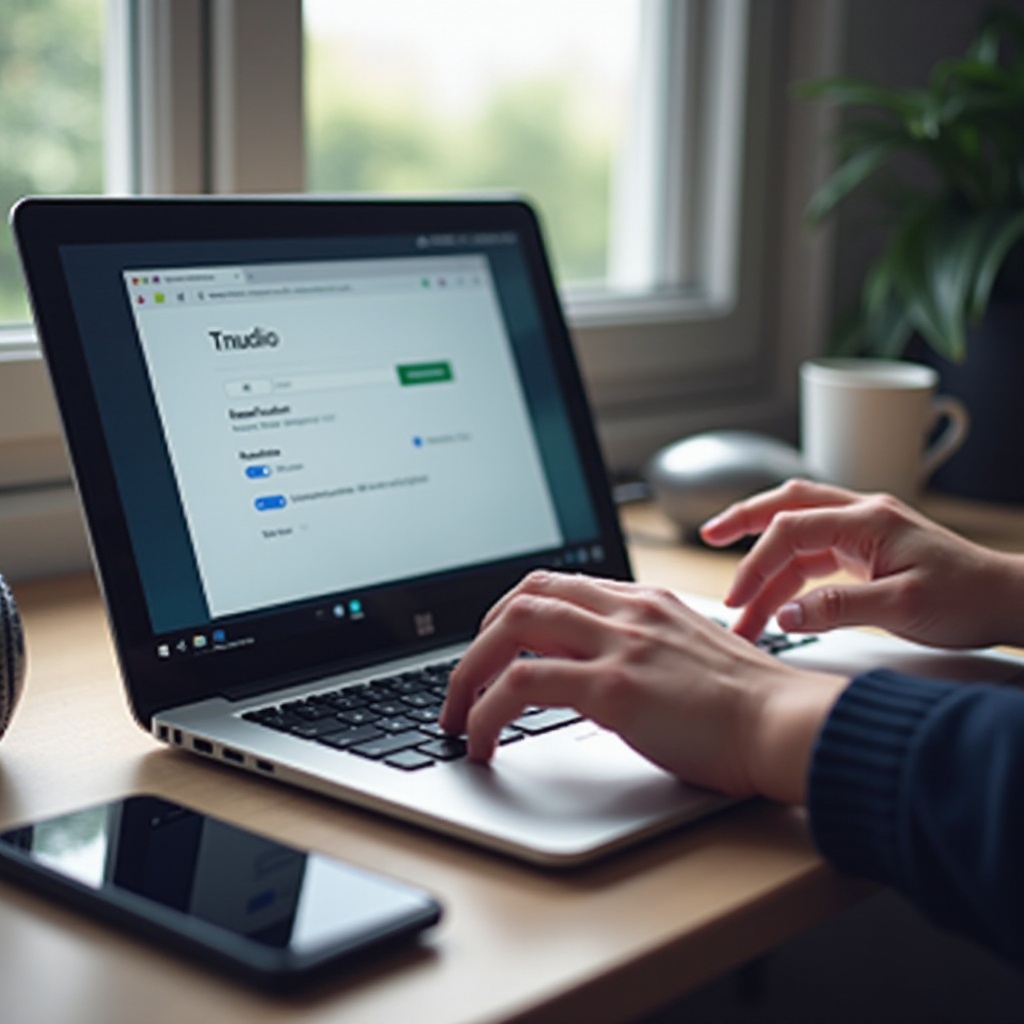
When basic adjustments fail, delve into these advanced troubleshooting strategies.
- Reinstall Audio Drivers: Though Chrome OS generally updates drivers autonomously, glitches can still occur. Performing a ‘Powerwash’ or factory reset usually reinstalls these drivers effectively.
- Update Chrome OS: Confirm your Chromebook’s operating system is up-to-date. Updates often contain bug fixes that could resolve sound problems. Navigate to Settings > About Chrome OS > Check for updates.
- Use the Chromebook Recovery Utility: For corrupted system files, the Chromebook Recovery Utility can revert your device to its original setup. Remember, this action will delete all local data, so create backups in advance.
Advanced troubleshooting can tackle complex issues but involves more risks, such as data loss. Backup important information before proceeding.
Investigating App and Website Audio Issues
Occasionally, audio problems originate from specific applications or websites, not the Chromebook itself.
- Check App Permissions: Confirm that audio-utilizing apps have requisite permissions. Manage these within the Chrome browser settings under Privacy and Security.
- Verify Website Compatibility: Some websites may not fully support Chromebooks, affecting audio capability. Test sound playback across various sites to ascertain if the issue is localized or widespread.
Exploring these facets can help identify whether the source of your issues is internal to the Chromebook or external factors like apps or websites.
Hardware Solutions for Sound Problems
When software solutions are ineffective, consider potential hardware issues causing sound problems.
- Inspect Audio Ports: Examine headphone and speaker ports for visible damage or debris. Carefully clean any debris using compressed air or a soft tool.
- Test External Devices: Connect external speakers or headphones to determine if the issue lies with the internal speakers or elsewhere.
Identifying hardware issues may warrant professional repair or replacement. It can also guide when it’s necessary to turn to expert help.
When to Seek Professional Help
Should troubleshooting fail, professional support might be your next best step.
- Confirm Hardware Damage: Look for any visible physical damage, like cracked casings or dysfunctional ports, which could need expert handling.
- Explore Warranty Options: If your Chromebook remains under warranty, it’s advisable to reach out to the manufacturer for repair or potential replacement options.
Recognizing the point at which professional assistance is necessary can save both time and further potential damage to your device, ensuring its quick return to functionality.

Conclusion
Solving sound issues on your Chromebook involves a systematic approach, starting with simple adjustments and advancing to more complex troubleshooting methods as needed. By following these outlined steps, users can effectively restore their audio functionality and resume normal Chromebook usage.
Frequently Asked Questions
Why is there no sound coming from my Chromebook even after a restart?
Issues may persist due to incorrect settings or deeper software anomalies. Check audio settings and consider updating your OS.
Can external speakers help solve the sound issue on my Chromebook?
Yes, connecting external speakers can help determine if the issue is with your Chromebook’s internal speakers.
What should I do if updating the OS didn’t fix my Chromebook’s sound issue?
If updates don’t help, consider reinstalling audio drivers or using the Chromebook Recovery Utility as a last resort.