
Introduction
Computer crashes are not just a nuisance—they can be a major disruption, affecting productivity and data integrity. Understanding the root causes behind these crashes is crucial. This guide delves into why your computer might be crashing and offers practical solutions to keep your system stable. By identifying whether it’s a hardware issue, software conflict, or another problem, you can take the necessary steps to fix and prevent crashes.

Common Causes of Computer Crashes
Computer crashes often have various underlying causes that need to be identified and addressed.
-
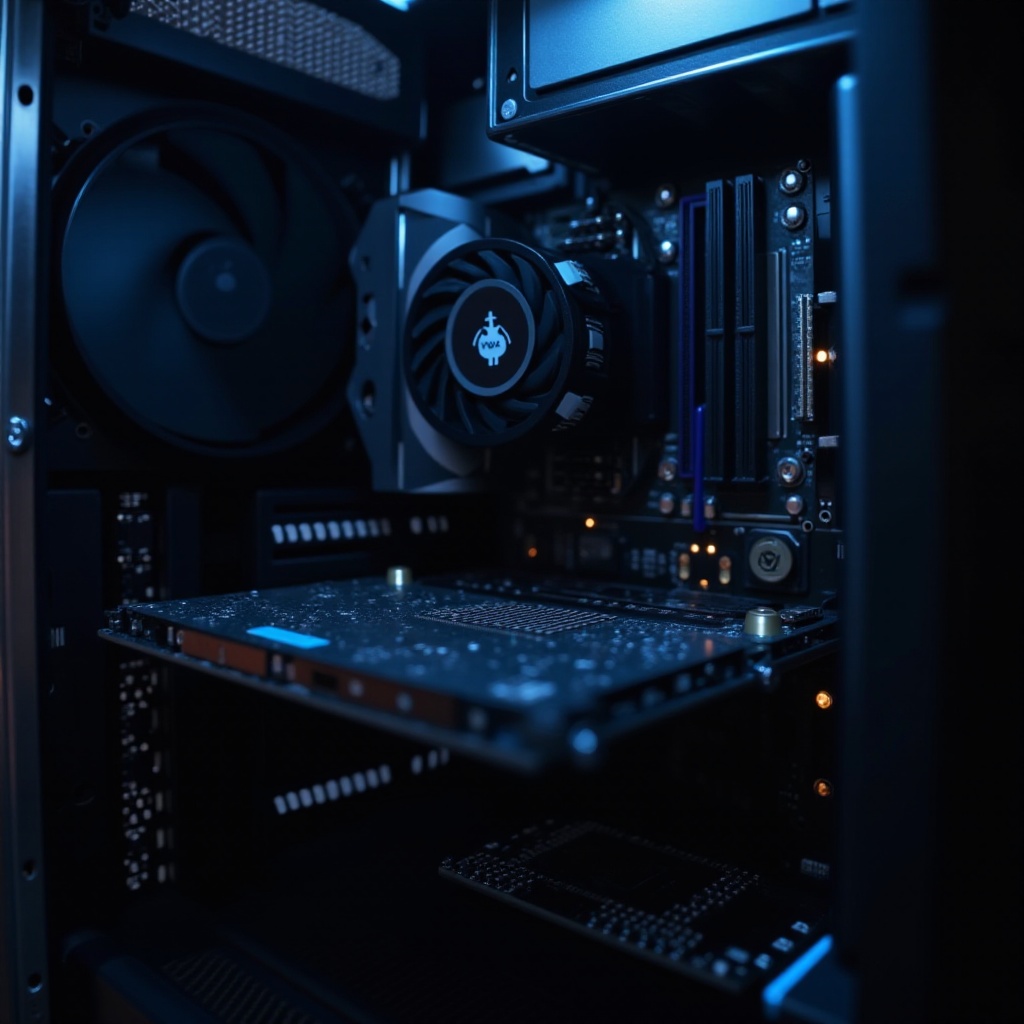
Hardware Issues: Over time, components like RAM, hard drives, and power supplies can degrade or become faulty. Overheating due to poor ventilation can also cause the system to shut down unexpectedly.
-
Software Conflicts: Incompatible programs, especially when they are outdated or not properly installed, can clash with the operating system, leading to instability and crashes.
-
Driver Problems: Drivers are vital for communication between hardware and software. When they become corrupted or outdated, they can cause the system to fail.
-
Malware and Viruses: Malicious software not only puts your data at risk but can also destabilize your system, leading to frequent crashes. Keeping security software updated is key.
Understanding these causes is the foundation for diagnosing your computer’s specific issues accurately.
Diagnosing the Problem
Once you understand what might be causing the crashes, it’s time to diagnose the problem precisely. Here are some steps you can follow:
-
Utilizing Built-in Diagnostic Tools: Most operating systems have tools that can check hardware and software integrity. Run these tools to see if they catch any errors.
-
Monitoring System Performance: Use task manager tools to monitor applications and processes. Look out for any that are consuming excessive resources, which could indicate a problem.
-
Checking Event Logs: Access event logs in your operating system to trace errors back to their source. This step can help identify patterns or specific problems behind crashes.
Diagnosing the exact issue clarifies what you need to do next to fix your computer.

Solutions to Fix Computer Crashes
Armed with a diagnosis, you can now implement solutions targeting the root cause of the crashes.
- Hardware Solutions:
- Clean and ensure that all air vents are clear to prevent overheating.
-
Replace any components that diagnostics show are failing or showing signs of wear—particularly RAM and hard drives.
-
Software Solutions:
- Regularly update your software and operating system to ensure compatibility and security.
-
Uninstall programs that commonly cause issues or haven’t been used lately.
-
Updating and Managing Drivers:
- Stay current with driver updates from the manufacturers’ websites, as they often release updates to fix known issues.
-
If a recent update coincides with new crashes, you may need to revert to an older driver version.
-
Addressing Malware Threats:
- Deploy antivirus software to scan your system, looking for and removing malware.
- Regular auto-updates for antivirus programs are crucial to maintain security against new threats.
Following these troubleshooting steps will help resolve most crashing issues.
Preventing Future Crashes
Having fixed the immediate problems, you should focus on prevention to ensure long-term system stability. Here are some tips:
-
Regular Maintenance Tips: Keep the interior of your computer clean, maintain a comfortable room temperature, and reduce dust accumulation to minimize overheating risks.
-
Importance of System Backups: Regularly back up important files to both physical (external drives) and cloud storage, ensuring data protection should a crash occur.
-
System Update Best Practices: Enable automatic updates where possible, and routinely check for new updates to keep everything up to date and secure.
Taking these preventive steps will greatly reduce the risk of future crashes, keeping your system running smoothly.
Conclusion
Computer crashes, while frustrating, are manageable with the right knowledge and approach. By identifying causes, accurately diagnosing problems, and applying the recommended solutions, you can resolve most issues and prevent them from recurring. For persistent problems, consulting with a professional provides further diagnostic and repair options.
Frequently Asked Questions
Why does my computer crash during startup?
Crashes during startup could be due to corrupted system files or malfunctioning startup programs. Safe mode can help identify and resolve these issues.
Can insufficient RAM cause a computer to crash?
Yes, insufficient RAM can cause computers to crash, especially when running multiple applications at once, as it may not have the resources needed.
How can I tell if my computer is overheating?
Signs of overheating include high fan activity, random shutdowns, and slower performance. Use temperature-monitoring software to keep track of your system’s heat levels.