
Introduction
Is your Mac fan spinning incessantly, creating a symphony of noise? This is a common issue for many users, affecting not only concentration but also indicating potential problems within the system. Addressing a perpetually running fan is crucial for maintaining your Mac’s performance and extending its lifespan. In this article, we will explore why your Mac fan might be on overdrive and share actionable solutions to resolve this issue.

Understanding Your Mac’s Cooling System
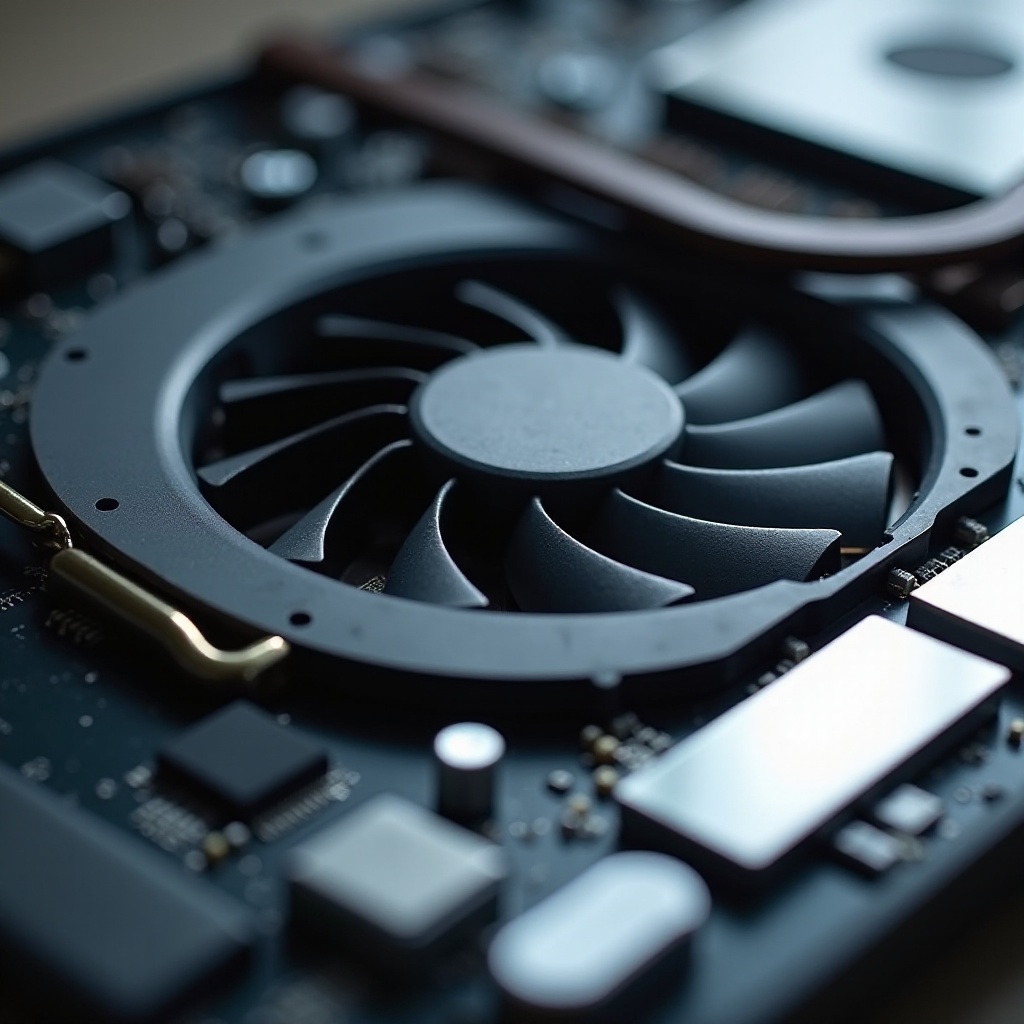
The cooling system in your Mac plays a vital role in ensuring your machine operates efficiently. At its core is the fan, tasked with maintaining a stable temperature.
-
The Role of the Mac Fan: The fan’s primary function is to dissipate heat away from the processor and other internal components, preventing overheating.
-
Normal vs. Abnormal Fan Activity: Typically, the fan operates during intensive tasks, like video editing or gaming. However, incessant running without apparent reason could indicate a problem. Knowing what constitutes normal activity can help identify issues early.
With this understanding, let us move on to potential causes of an overly active Mac fan.
Common Causes of a Constantly Running Mac Fan
If your Mac fan is constantly running, several issues might be at play.
-
High CPU Usage: When your machine is overloaded with apps or a single app is particularly resource-intensive, the CPU can heat up, causing the fan to run continuously.
-
Software and Application Issues: Sometimes, apps may have bugs or memory leaks that lead to high CPU usage. Outdated or malfunctioning software can exacerbate the issue, keeping the fan in perpetual motion.
-
Overheating and Poor Ventilation: External factors such as obstructed air vents or nearby heat sources can increase temperatures, prompting the fan to work overtime.
Understanding these causes primes you for effective diagnostics, allowing you to take precise corrective action.
Diagnosing the Problem
Identifying the root cause of your Mac’s fan issues is crucial. Here’s how you can diagnose effectively:
-
Using Activity Monitor to Identify High Resource Apps: Open the Activity Monitor via Applications > Utilities. Check the ‘CPU’ tab for apps using high CPU percentages. Closing these can often resolve fan issues quickly.
-
Checking System Temperature and Ventilation: Apps like iStat Menus can help monitor internal temperatures. Ensure your Mac is not surrounded by heat sources and that its vents are clear and unobstructed.
-
Identifying Background Processes: Background activities can consume significant resources. Use Activity Monitor to spot and terminate unnecessary processes.
After identifying the problem’s source, you can apply targeted solutions to fix the fan’s excessive activity.
Solutions to Fix a Constantly Running Mac Fan
Once you have pinpointed the cause, it’s time for action. Here are solutions to consider:
-
Closing Unnecessary Applications: Always exit software and apps not in use to alleviate CPU strain and curtail heat production.
-
Cleaning Vents and Improving Airflow: Dust can accumulate over time, blocking airflow and causing the fan to overwork. Routine cleaning with compressed air ensures your Mac remains debris-free.
-
Resetting SMC and PRAM: Sometimes, resetting the System Management Controller (SMC) and Parameter RAM (PRAM) can solve fan problems. Specific reset instructions can vary by Mac model.
-
Performing Software Updates: Keeping your macOS and apps updated can resolve bugs and enhance performance, reducing unnecessary fan operation.
Implementing these fixes can significantly reduce fan noise and improve your Mac’s efficiency.

Preventive Tips for Maintaining a Cool Mac
With the immediate fan issues remedied, let’s take preventive steps to ensure sustained performance.
-
Regular Maintenance and Cleaning: Schedule a quarterly check to clean your Mac and ensure vents are dust-free, preserving airflow.
-
Adjusting Settings for Optimal Performance: To reduce energy consumption, adjust the Energy Saver preferences to select conservative settings when the Mac is not plugged in.
By incorporating these steps into your routine, you can prevent future fan issues and enhance your Mac’s longevity and performance.
Conclusion
A continuously running Mac fan is more than just a nuisance; it signals underlying issues you can now identify and address. From using Activity Monitor to implementing practical fixes like regular maintenance and software updates, you’re equipped to keep your Mac cool and quiet. A proactive approach will ensure it functions optimally for years to come.
Frequently Asked Questions
Why does my Mac fan run loudly after a software update?
Updates can cause temporary high CPU usage due to re-indexing and background tasks. This typically subsides soon after.
Is it normal for my MacBook Pro fan to run constantly?
Constant fan operation may indicate a resource issue or hardware problem. Diagnosing with tools like Activity Monitor is recommended.
Can dust cause my Mac fan to run continuously?
Yes, dust can obstruct airflow through vents, causing the fan to compensate by running continuously. Regular cleaning can prevent this.